Profiling with cargo flamegraph
January 25, 2025
Warning: this page is older than 365 days. The content may be out-of-date.
This will be a rather short blog post, because all I wanted to show off was this flamegraph, generated from one of the questions in the competitive programming course I’m taking:
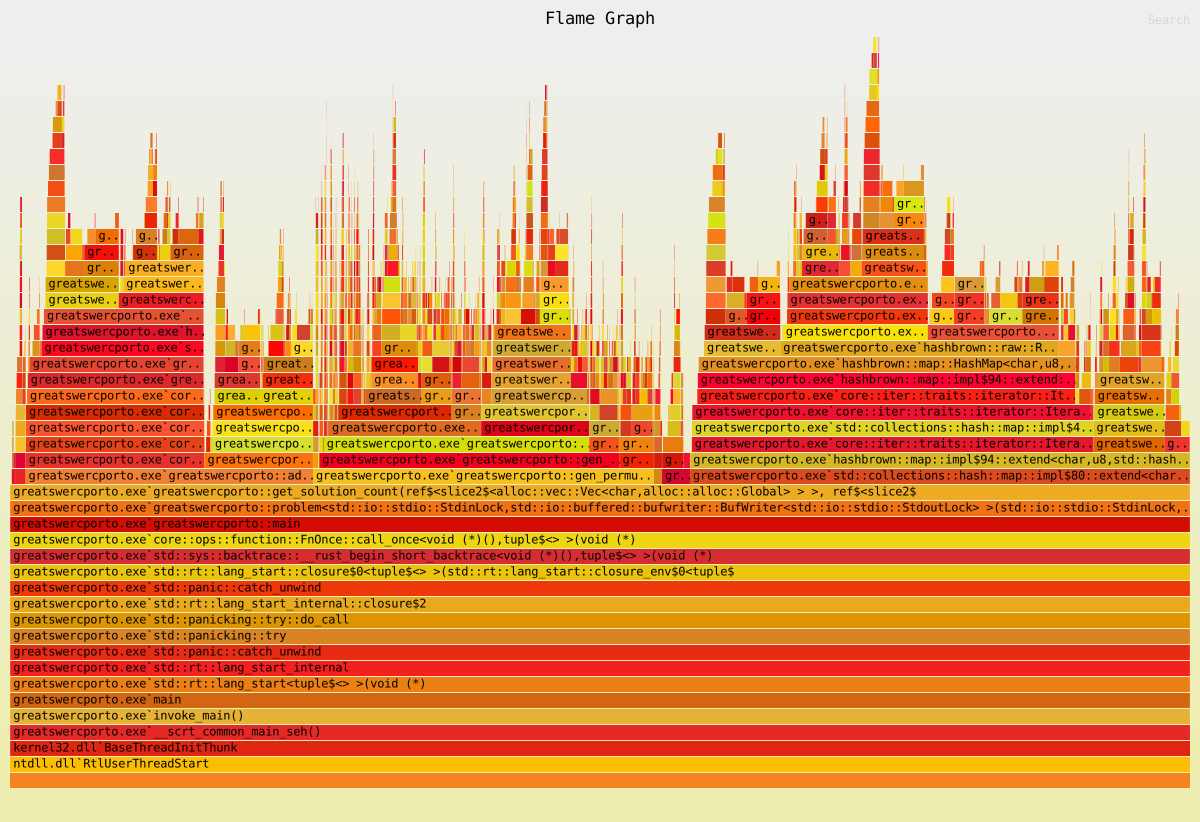
(Note: the SVG file is actually interactive, but you do need to right-click on the image and open it in a new tab!)
I love looking at flamegraphs!
Side-note: getting cargo flamegraph running on Windows is slightly involved.
Windows Preparations
- If you have BitLocker enabled on your machine, back up the recovery key. You will need it in a sec. Most Windows machines nowadays ship with BitLocker enabled.
- Enable
dtracefunctionality by runningbcdedit /set dtrace onin an elevated permissions terminal. - Download and run the installer from Microsoft’s official
dtracerepository. - Set the
_NT_SYMBOL_PATHsystem environment variable to the following (see details on why here):
srv*c:\symbols*https://msdl.microsoft.com/download/symbols- Reboot your machine. Enter in the BitLocker recovery key when prompted.
Linux Preparations
On Linux, you do need the linux-tools packages for your specific kernel version. I’m using NixOS, so I just had to run nix shell nixpkgs#linuxKernel.packages.linux_latest_libre.perf to get just the perf package that flamegraph-rs requires. (No idea what the libre part is for, but there wasn’t one without that suffix…) Check out the official installation section of the README for distro-specific instructions.